This release brings pronunciation dictionaries, which editors have been asking for, and a completely new music library. Social media posts embedded in an article now come into the video automatically, and the player in the editor can show how your video will look on social platforms.
Fix a pronunciation once, reuse it in every video
Until now, a pronunciation set with Pronounce as worked only in the video you were editing. The next time the same surname or place name came up, someone had to fix it again. When we published our guide to fixing AI voiceover pronunciation in August, we said we were working on reusable dictionaries. They are now part of Flipatic.
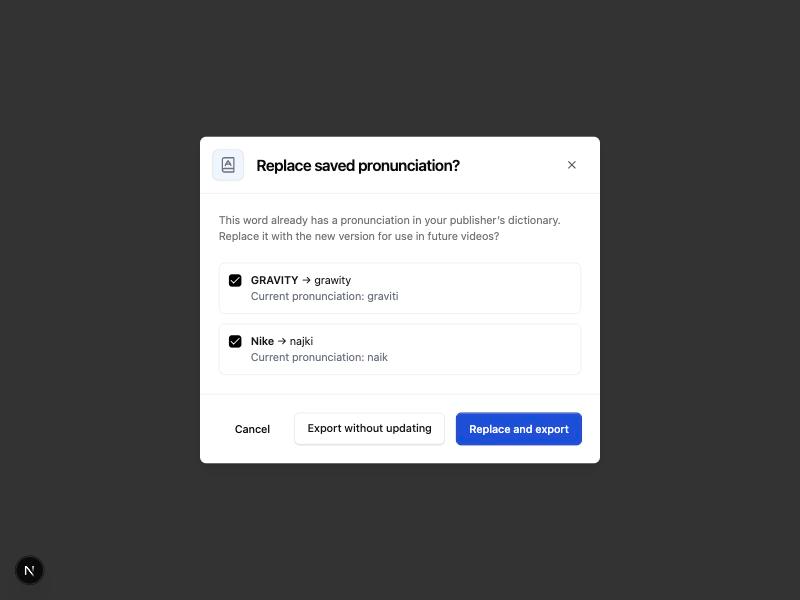
Each publisher has a pronunciation dictionary for every language it works in, and it fills up as editors work. Say an editor spells out how the narrator should say "Nike" and exports the video: Flipatic saves that pronunciation, and every new video in that language uses it. Dictionary words are highlighted in blue in the script, and you can still change or remove them in Pronounce as.
A saved pronunciation is never overwritten without asking. If you change or remove one that is already in the dictionary, Flipatic asks before export whether to replace it for future videos or to export without updating the dictionary.
A few details worth knowing:
- a pronunciation set for one occurrence of a word applies to every occurrence in the script,
- subtitles always show the original spelling,
- dictionaries apply to new videos, existing videos stay as they are,
- a dictionary can cover all of a publisher's websites in a given language or only selected ones.
If your newsroom already keeps a pronunciation list, including multi-word phrases, we can import it from a CSV file.
A new music library, organised by mood
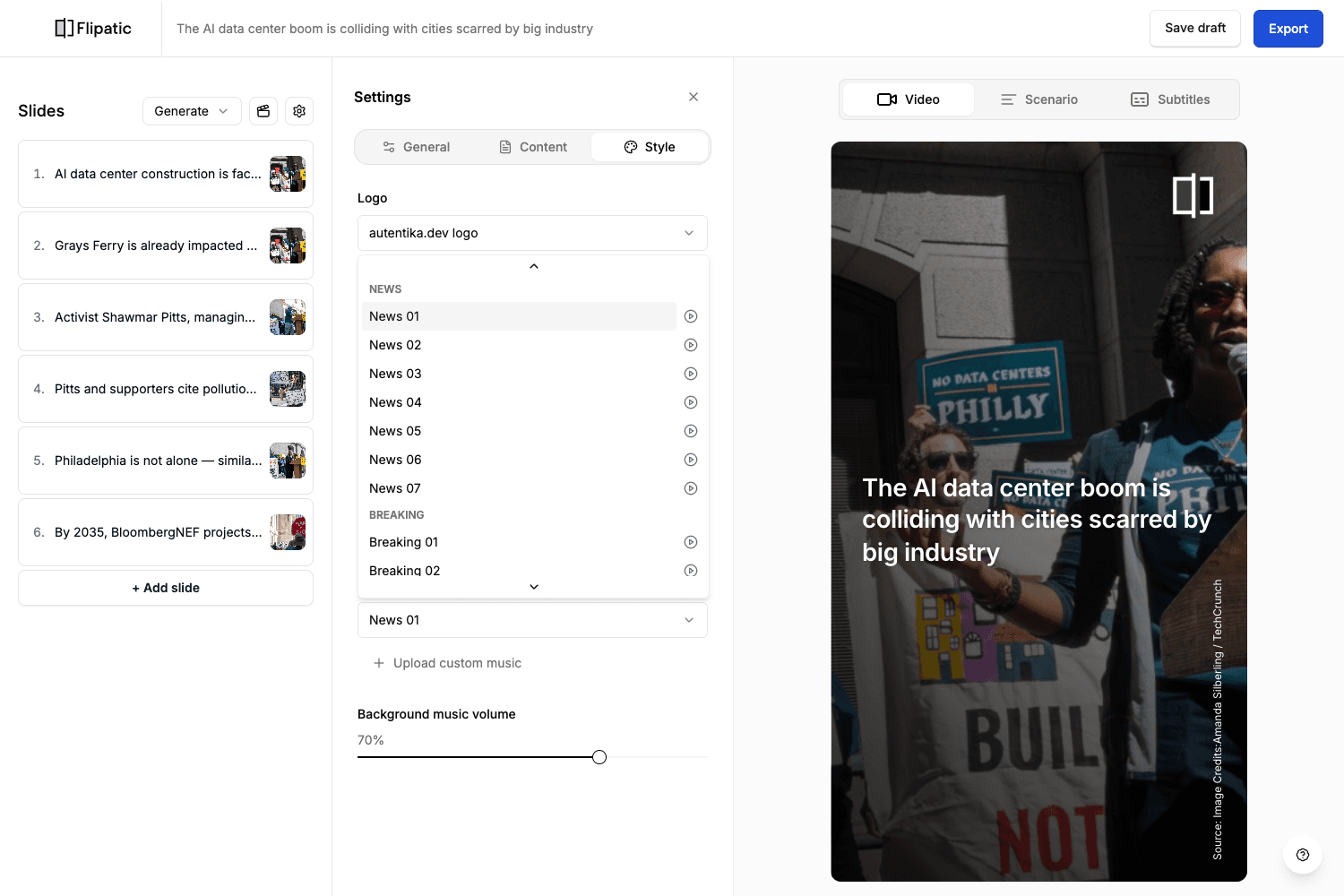
We have replaced the standard music library with a new set of 43 tracks, chosen after looking at which tracks editors actually used. They are grouped by mood rather than topic, so a track isn't tied to one type of story: News, Breaking, Positive, Calm, Sad, Mysterious and Energetic. Every track in the music picker has a play button for a quick listen, which doesn't change the music in your video. We have also evened out loudness across the library, so switching tracks doesn't make the music jump under the voiceover.
Publishers using their own music keep it unchanged, in a separate section under the existing names. Website default tracks stay the same, and existing videos keep their music, even when a track has been retired from the library.
Social media posts imported automatically
Flipatic has supported social media posts as video backgrounds for a while, but they had to be added by hand through Add background > Social media. Now, when you create a video from an article, Flipatic picks up the posts embedded in it, from X, Facebook, Instagram, TikTok and Truth Social, and adds them as backgrounds.
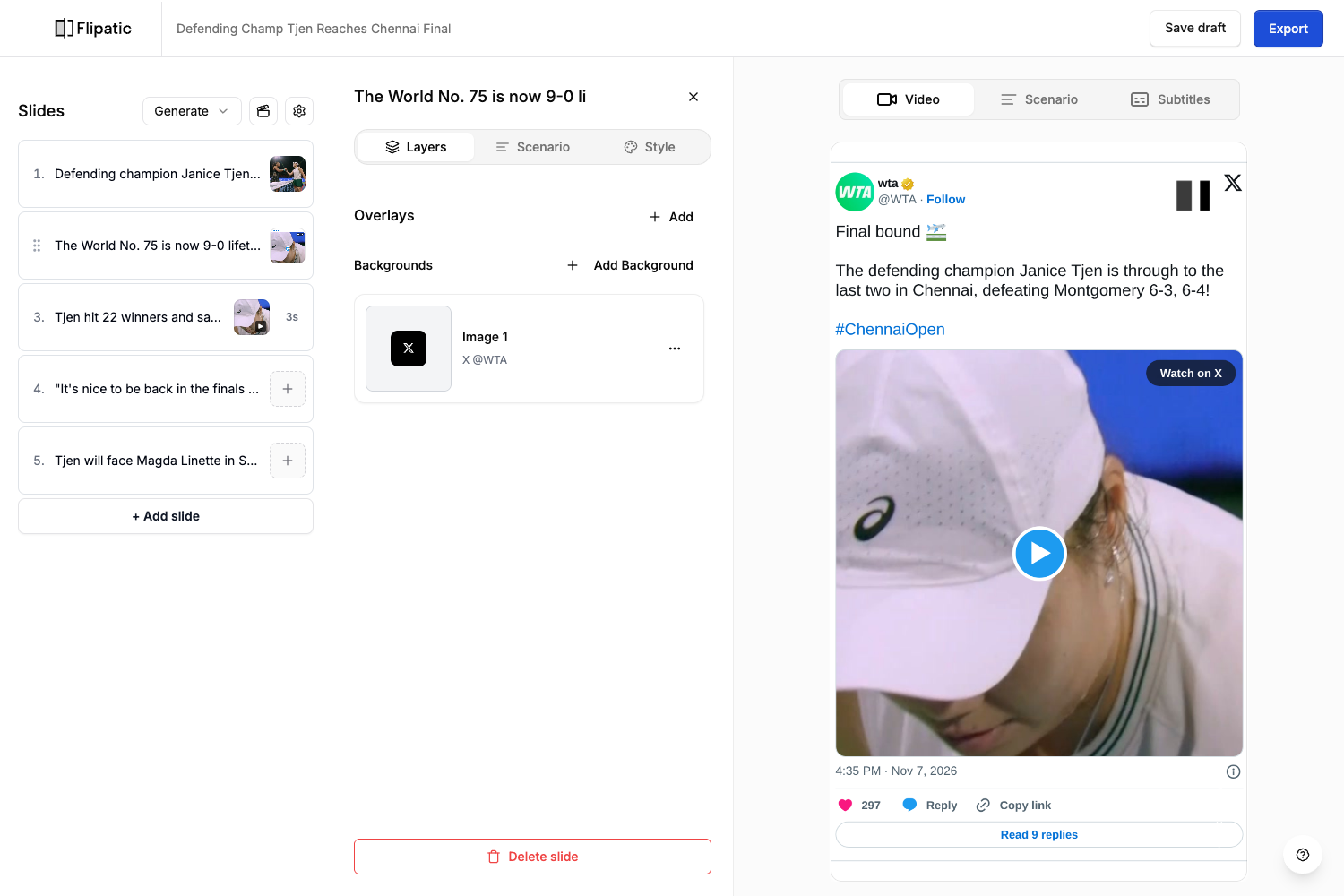
Each post comes in as a screenshot and goes into the slides alongside the article's photos. If a post contains a video, Flipatic can also import the video itself and give it a slide of its own. Not every publisher wants to reuse video from social platforms, so video import is a separate setting for each website. With the setting off, you get the screenshot only.
Posts that don't fit on the slides wait in the background gallery. The editor still decides what goes into the video: an imported post can be removed or swapped like any other background. In our tests, the import didn't noticeably slow down the first step of creating a video.
See how your video will look on social platforms
The video player in the editor has a new option: an overlay that imitates the interface of TikTok, Instagram, YouTube, Facebook or X. It lets you check, before publishing, whether subtitles or an important part of the frame will end up hidden under the platform's buttons and captions.
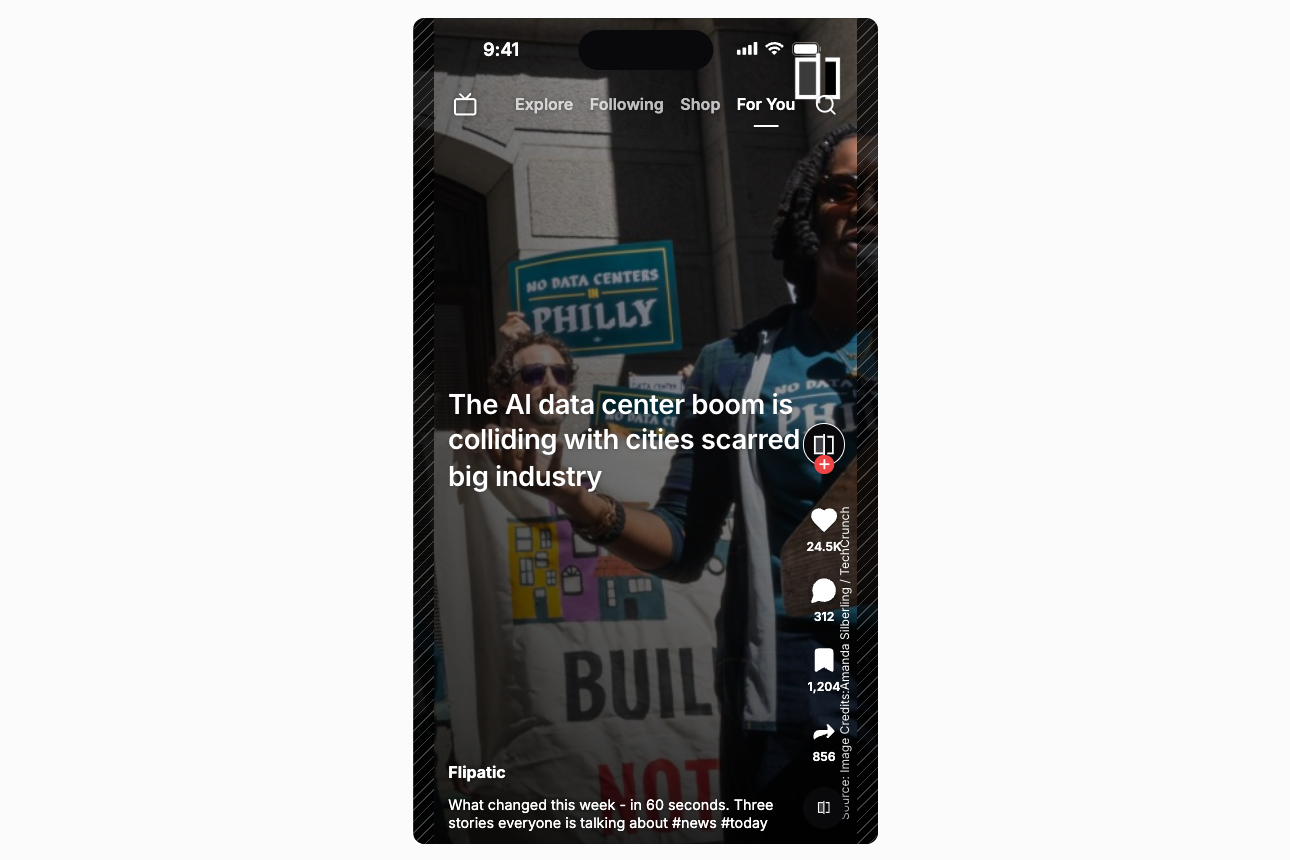
In the example above, the TikTok preview shows the logo sitting under the search icon, the end of the title under the profile picture and the photo credit under the like and share buttons.
We have also tidied up the player: the controls now sit above the progress bar and the play button is bigger.
If you'd like to see these changes on one of your own articles, get in touch with our team.