
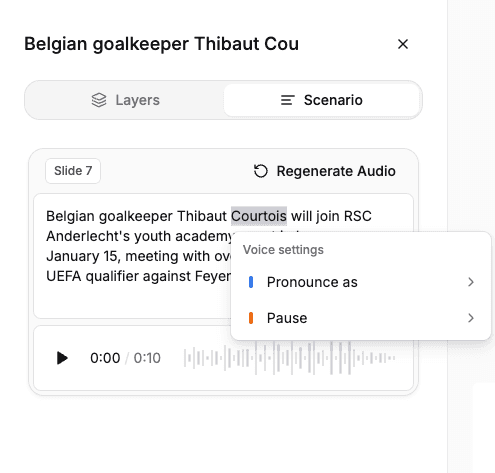
AI voiceovers work great most of the time, but they can stumble over unusual words - names, numbers, abbreviations, brand names. Flipatic gives you a simple way to fix this: select the word, and tell it how it should sound.
Examples below come from a real production screenshot - a short English news snippet with a few tricky proper nouns. The same technique works for any word, in any language, in Flipatic.
How it works
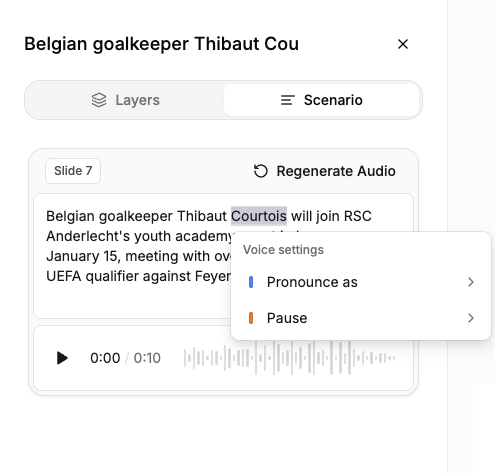
Select the word you want to fix. A toolbar appears above it - open Voice settings and choose Pronounce as.
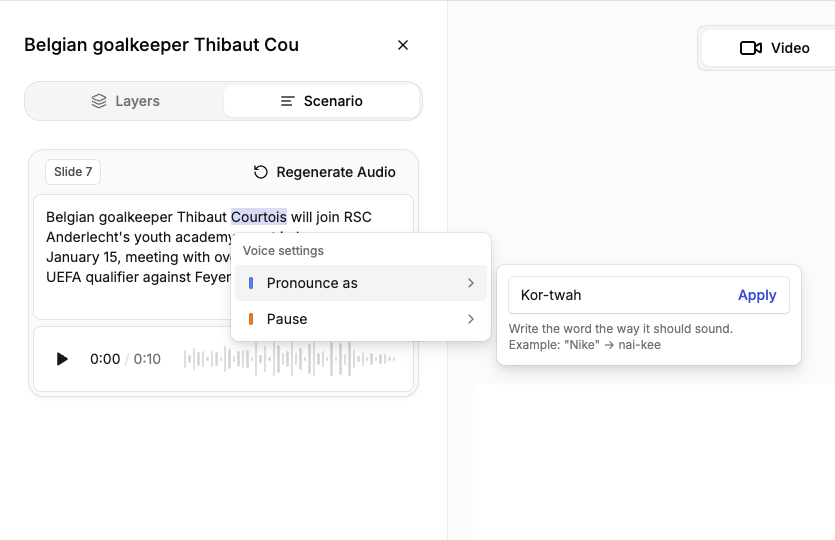
A field opens next to it: type the pronunciation the way it sounds, then click Apply.
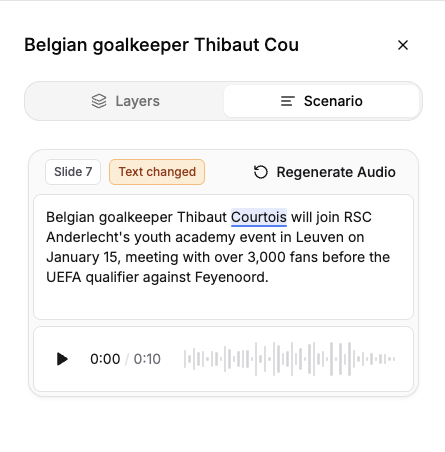
The word gets underlined to mark it as edited, and the slide picks up a Text changed tag. Click Regenerate Audio to hear the result for just that one slide.
The golden rule: one word at a time
Voice settings only opens for a single selected word - not a phrase, not several words at once. Need to fix a first name and a last name? That's two separate trips through the menu: select "Thibaut", set its pronunciation, apply - then select "Courtois" and do it again.
There's no shortcut that covers both in one go. Selecting more than one word at a time won't work the same way - the tool is built around single-word selection, every time.
Prefer typing? The old shortcut still works
If you've used Flipatic's pronunciation brackets before, nothing's changed for you: typing word[pronunciation] directly into the script still works exactly the same. The same one-word rule applies - the bracket only attaches to the single word right before it.
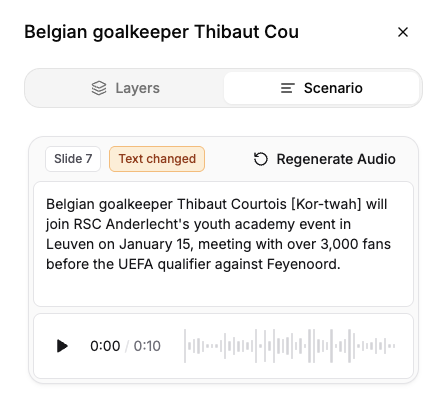
Once you move on, Flipatic strips the brackets from what's shown and underlines the word instead - the same visual marker you'd get from selecting it and choosing Pronounce as.
Where problems usually come from
Foreign name
Something like "Courtois" - select it and type Kor-twah.
Large number
"2,500,000" - select it and type two million five hundred thousand.
Year
"1302" - select it and type thirteen oh two.
Spelled-out abbreviation
"ANWB" - select it and type A-N-W-B.
Word-like abbreviation
"NASA" - select it and type Nassa.
Company or brand
"Huawei" - select it and type Hwah-way.
City
"Leicester" - select it and type Lester.
There's no "official" phonetic spelling - just write the word the way you'd say it out loud.
Test as you go
Fixing pronunciation takes seconds, and you don't need to wait for the whole video to render:
- Click Regenerate Audio - it renders audio for just that one slide.
- Listen in the preview.
- Not quite right? Edit the pronunciation and generate again.
Only set a custom pronunciation for words that actually need it - everything else is read correctly on its own. And there's rarely one right answer on the first try, especially with foreign names - trying two or three spellings for a name like Depreitere is completely normal:
Depraytere
De-pray-tuh-re
Duh-pray-tair
What's next
Looking ahead, we're exploring features like automatic pronunciation suggestions and reusable pronunciation dictionaries, so you won't have to fix the same word twice. For now, Pronounce as is your main tool - and it covers most cases well.
One more thing
AI voice models are improving fast - a word that trips up the narrator today may be pronounced flawlessly in a few months. Until then, you're always a couple of clicks away from fixing it yourself.
Quick recap
- Select the word, then Voice settings → Pronounce as
- One word per action - first name and last name each need their own turn
- Write it the way it sounds, no phonetic alphabet needed
- Test on a single slide with Regenerate Audio, then adjust
- For numbers and abbreviations, type them out in words to avoid surprises
Questions? Reach out - we're happy to help.