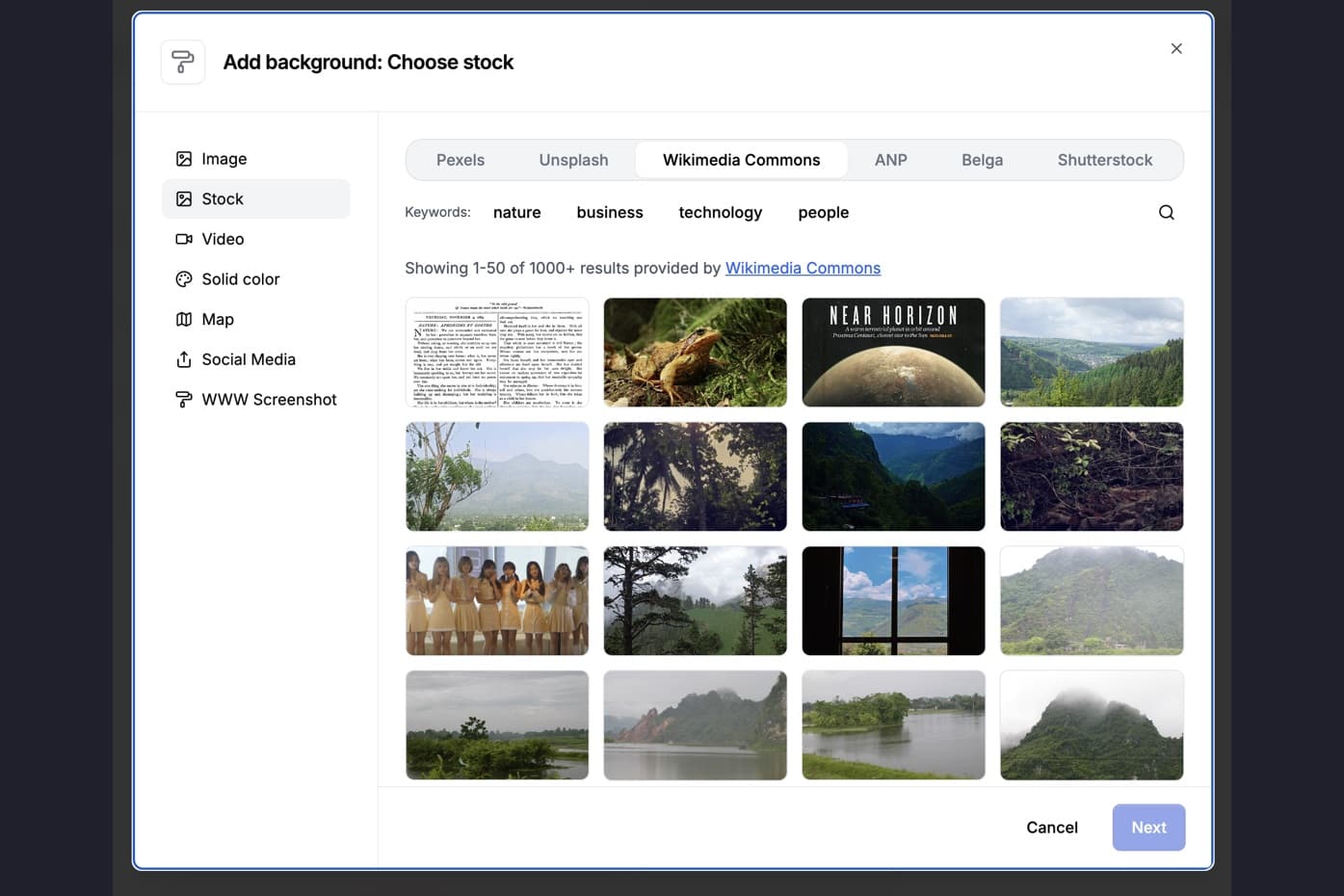
Our new Liveblog video type gives each update in a running story its own slide, so you can decide which ones belong in your video. We’ve also added two sources to the stock picker, Pixabay and Wikimedia Commons, and two options for the opening slide.
Make a video from the latest liveblog entries
When you create a Liveblog video from a supported Tickaroo liveblog, Flipatic takes the eight most recent entries and puts them in chronological order. It paraphrases each entry on its own slide, keeping the date, time and any accompanying photo with the update they came from.
The timestamp stays on screen while the narrator reads the update. You can shorten the video by removing individual slides.
Take this Dutch election liveblog. At 07:33 it reported that polls had opened nationwide. By 08:48 it had a local story: commuters were queuing to vote at Utrecht Central. We translated the entries and recreated the example in Flipatic’s News editor. Each image pairs a summary of the liveblog entry with the slide script.
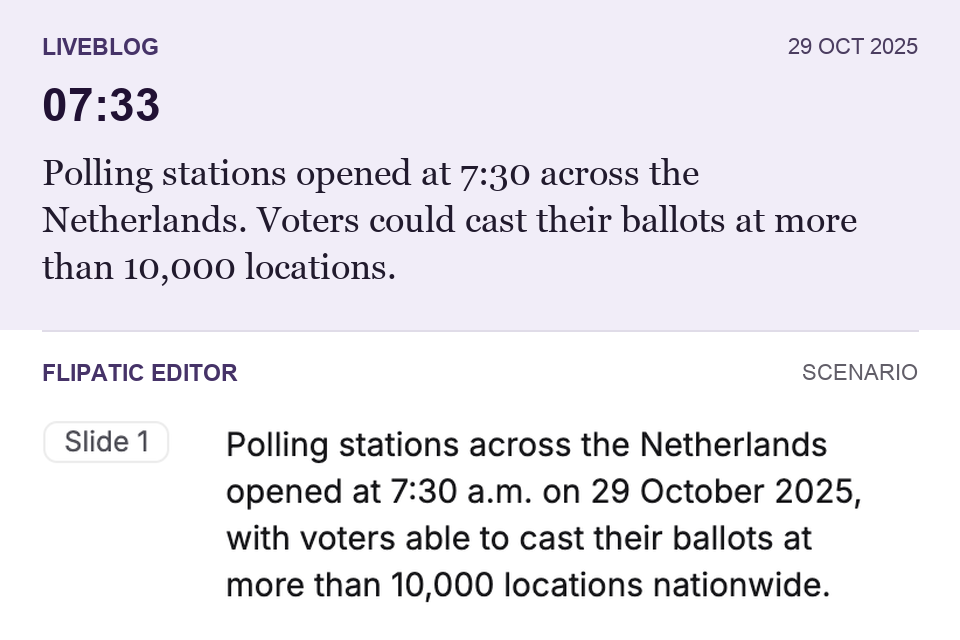
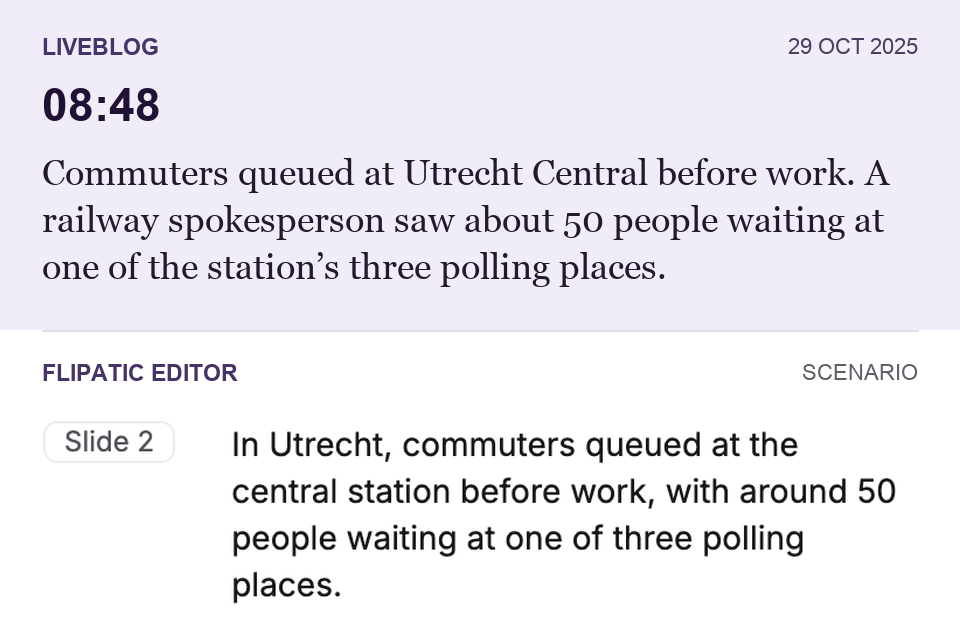
For a national roundup you might keep both. For a video about the morning commute in Utrecht, you could start with the queue at the station.
Liveblog needs to be enabled for your publisher and configured for the website you’re working on.
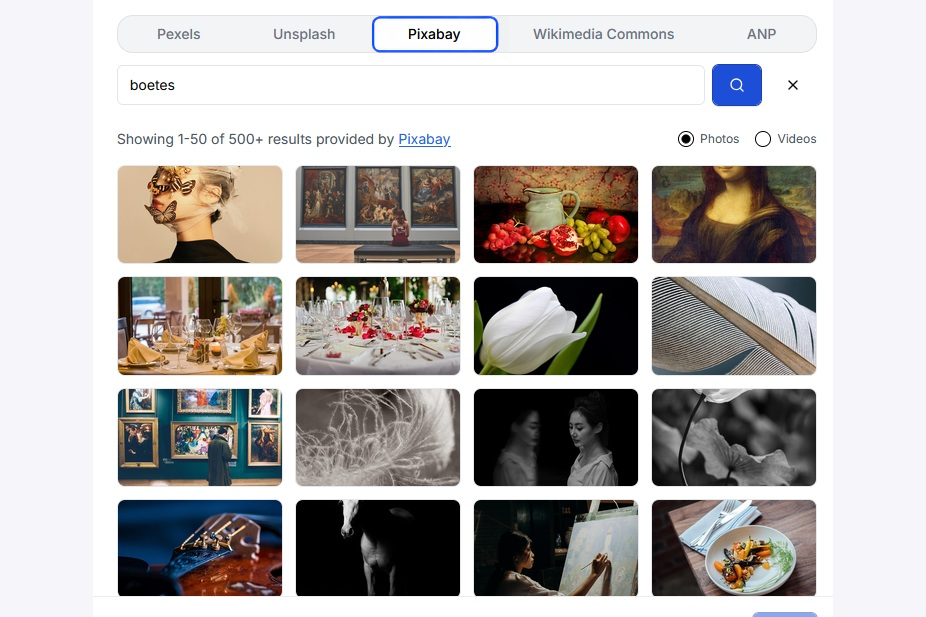
Find photos and video clips on Pixabay
Open the background picker, choose Stock and select Pixabay. As with Pexels, you can search for either photos or video clips. Each library returns its own results, so if a search on Pexels hasn’t turned up the shot you need, you can try the same words on Pixabay.
Use photos from Wikimedia Commons with their credits
Wikimedia Commons is also in the stock picker. Here the search covers photos in the public domain and photos under CC0 or CC BY. When you choose a photo, Flipatic fills in the Source field with the photographer’s name, Wikimedia Commons and the licence. For a CC BY photo, for example, the credit includes the licence version.
Read the headline aloud and show the byline
You can now set the narrator to read the video title before the text of the first slide. The title stays on screen while it’s being read, and the first slide lasts long enough for both. This is a setting for each website.
Flipatic can also pick up the author’s name from the source article and show it alongside the video title. Depending on the template, the byline sits above or below the headline. You can set a default for your website and leave the byline off an individual video. Hiding the title also hides the byline.

If you’d like to try this with a story your newsroom has covered, book a demo with our team and bring a link to your Tickaroo liveblog. We can go through the slides together and see which updates you’d keep.